Easy Insight Logo
Call 1-(720)-316-8174

Linking to E-Commerce

You can connect your e-commerce data with your inventory management system by going to Configuration on your inventory data source, then clicking on the Inventory section:

Sankey Diagram Sample

There are three main ways to link your e-commerce data with your inventory management data:

  • Linking Orders -- Connecting the orders between your e-commerce channels and your inventory system
  • Linking Products -- Connecting the products and inventory between your e-commerce channels and your inventory system.
  • Channel Fees -- Importing the cost of selling on an e-commerce channel into your inventory system to help calculate contribution profit down to an order and SKU level

Linking Orders

You can link the orders between your inventory system and your e-commerce channels. By linking these orders, you can:

  • Click through to the order in the e-commerce system from your IMS reports.
  • Make sure orders match and exist in both systems.
  • Pull through data not otherwise available in the IMS data from the e-commerce data. For example, you could pull Shopify tags or Amazon fulfillment channel.

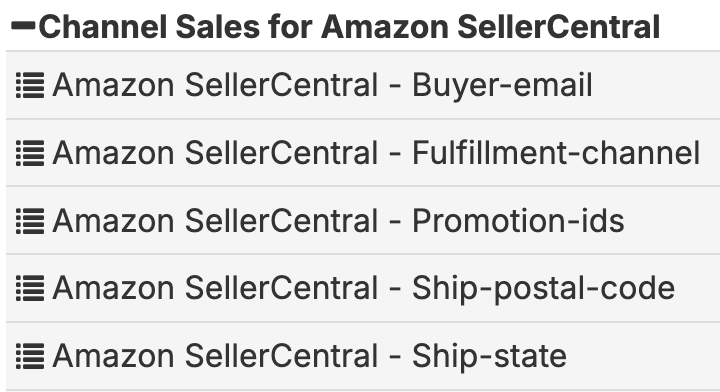
Once linked, you'll find your e-commerce fields under folders named 'Channel Sales for XXX' where XXX is the name of the e-commerce data source. Each of these folders maps to a report that can be found the e-commerce data source. To add additional fields to these folders, find the 'Channel Sales for XXX' report under the e-commerce data source, edit the report, and add the fields you want, then save the report. The fields will now be available under the folder in the inventory data source.

Sankey Diagram Sample

Linking Products

You can link the products between your inventory system and your e-commerce channels. By linking these products, you can:

  • Click through to the product in the e-commerce system from your IMS reports.
  • Make sure SKUs and inventory quantities match and exist in both systems.
  • Pull through data not otherwise available in the IMS data from the e-commerce data. For example, you could pull Shopify product type or Amazon ASIN.

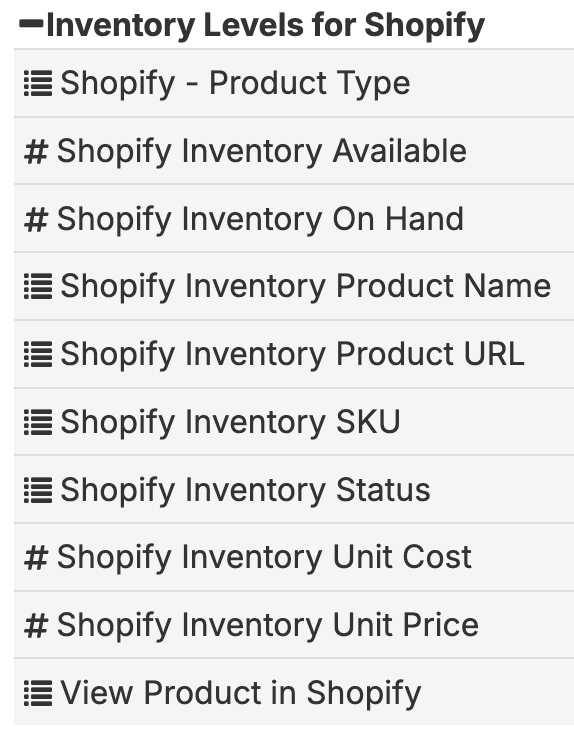
Once linked, you'll find your e-commerce fields under folders named 'Inventory Levels for XXX' where XXX is the name of the e-commerce data source. Each of these folders maps to a report that can be found the e-commerce data source. To add additional fields to these folders, find the 'Inventory Levels for XXX' report under the e-commerce data source, edit the report, and add the fields you want, then save the report. The fields will now be available under the folder in the inventory data source.

Sankey Diagram Sample

Channel Fees

Channel Fees represent how much it costs you to sell on a particular e-commerce platform. For example, Amazon has its commission amount on each order, as well as the additional FBA fee if Amazon is fulfilling the order for you. Easy Insight can pull these fees to help you identify the true contribution profit you're making on a per order and SKU level.

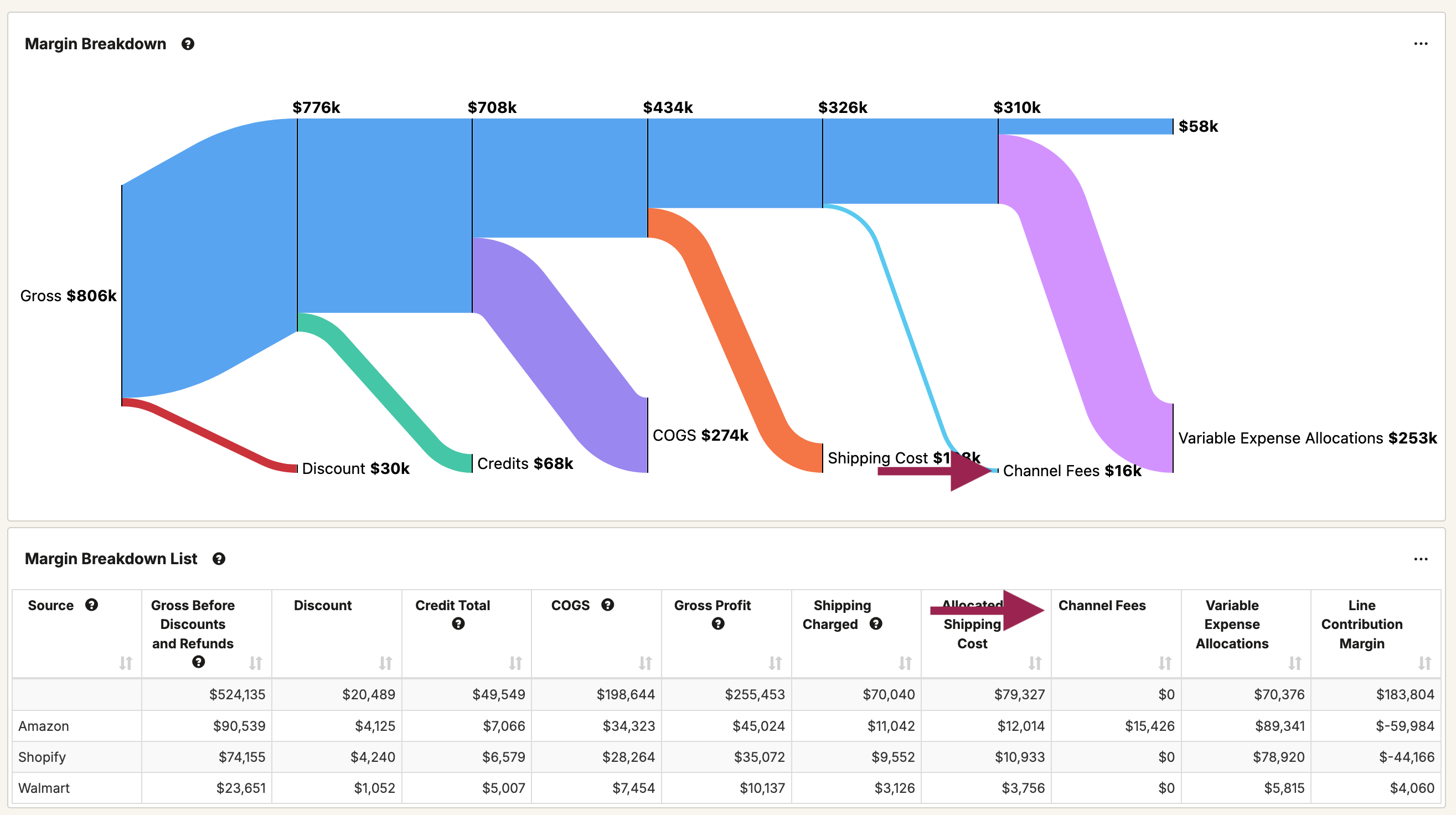
Once you've allocated channel fees, you can find the channel fees under a field along the lines of 'Allocated Channel Fee'--the exact field naming varies a bit by inventory connection. This amount will also flow into the channel fees section of Margin Breakdown reports on the prebuilt dashboard:

Sankey Diagram Sample
Twitter Logo