Easy Insight Logo
Call 1-(720)-316-8174

AI Report Creation

You can use a prompt to quickly generate a first draft of a report in Easy Insight. Create a new report, then go to the 'AI' menu and choose 'Generate from Prompt':

Accessing by Menu

AI report generation in Easy Insight is based on Recommended Fields. Most data sources will have a variety of out of the box recommended fields, but you can customize this list or define your own if necessary as documented under Recommended Fields.

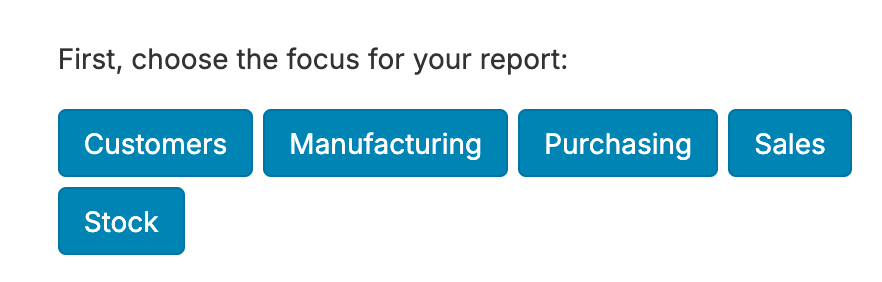
Depending on your data source, you may be asked to choose whether you're setting up a report on Sales, Purchases, Manufacturing, or other tags. This way, the query can identify the relevant fields for something like 'Show me the orders created in the last 90 days?' and determine whether you mean sales orders, purchase orders, or manufacturing orders.

Specifying Tag

Once you've set an initial tag (if necessary), you can put in a query. Here are a variety of examples:

  • Show me a column chart of total sales by category in the last 365 days sorted from high to low
  • Show me a pie chart of the top 5 products by gross profit
  • Show me a list of orders created in the last 90 days where the source is Shopify
  • Show me a crosstab of total sales invoiced by year and brand
  • Show me a table of tasks completed in the last 90 days
  • Show me a list of products, on hand, on order, reorder date, and out of stock date

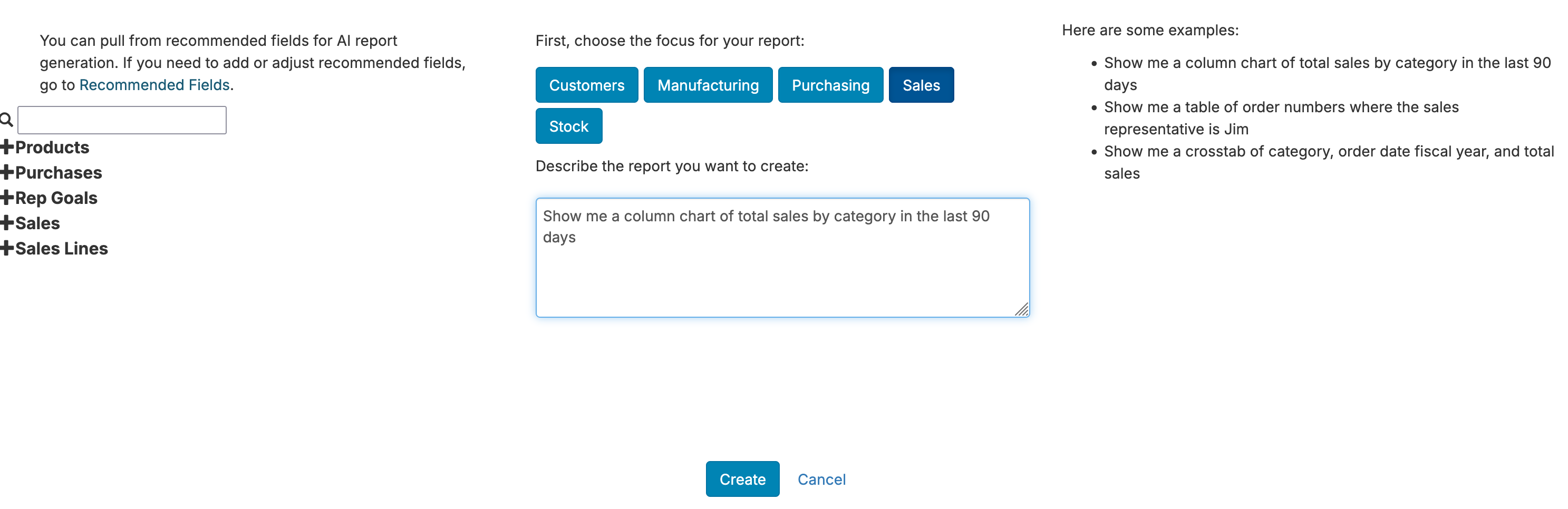
The screenshot below shows an example prompt:

Sample Prompt

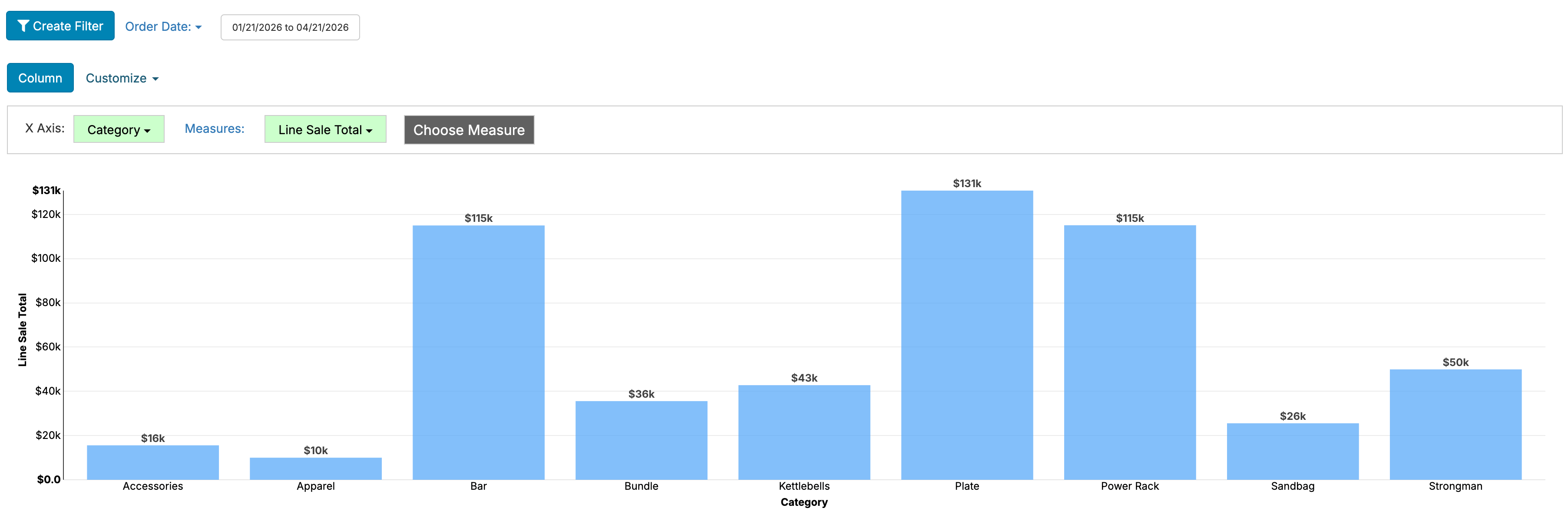
Which in turn gives the following report:

Report from Prompt

Make sure to double check the produced report to make sure it meets the criteria you wanted. If the report doesn't do what you want, you can reload the report editor in the browser to discard the changes and try again. Right now, this functionality isn't intended to be applied to existing reports.

Right now, the AI generation on our side tries to do the following:

  • Identify the report type
  • Identify and assign groupings/measures/dates to the appropriate field on the report
  • For dates on the report, identify if the date should be at the year, quarter, month, week, day, week, fiscal year, or fiscal quarter level
  • For measures on the report, identify if the measure should a sum or average
  • If a goal measure is specified in the report along with its matching measure, set the report to handle accordingly
  • Identify the most appropriate date field to use--for example, if you say 'created', it'll look for the sale/PO/task/MO creation date, while if you say 'invoiced', it'll try to find an invoice date
  • If any limit is specified, apply the limit
  • If sorting is specified on charts, apply sorting--not yet implemented for list or crosstab reports
  • If any additional filters are specified such as 'where the rep is Jim', 'where days of stock is less than 20', or 'where the customer name contains XXX', create a multi value filter, range filter, or pattern filter
  • If the query says something like 'show me how many orders have been created by month' where no orders field exists, attempt to determine the appropriate count for orders
Twitter Logo