Easy Insight Logo
Call 1-(720)-316-8174

Combining Data Sources

There are three main ways to combine data sources in Easy Insight:

  • Additional Sources -- add a data source into an existing data source.
  • Combined Data Source -- create a new data source which combines multiple other data sources.
  • Inventory Source Integration -- directly integrate data from your e-commerce, CRM, shipping, or finances into inventory management data sources. For more information on these integrations, see Accounting Integrations and E-Commerce and Shipping Integrations.
  • Federated Data Sources -- have multiple e-commerce stores or multiple inventory systems in different regions? If your sources an identical data structure, you can combine them into a single source for reporting. For more information, see Federating Sources.

Additional Sources

For example, if you just have an Excel file you want to add to an existing Shopify or Cin7 connection, you can add that Excel data source to the Shopify or Cin7 data source without having to create an entire new combined source. You can do this for the following set of data sources:

  • Excel/CSV
  • User Data Source
  • JSON
  • Google Sheets
  • Airtable
  • Smartsheet

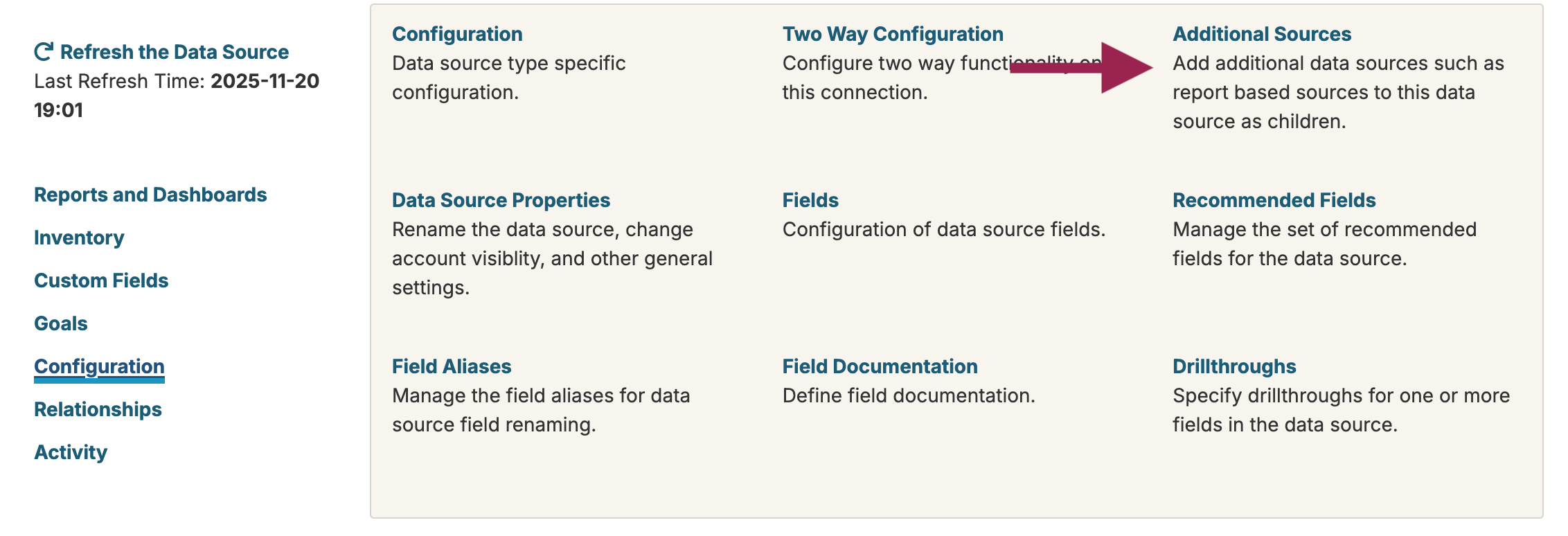
To add data from one of these sources directly to a more complex data source, go to the more complex data source, click on Configuration, and do Additional Sources:

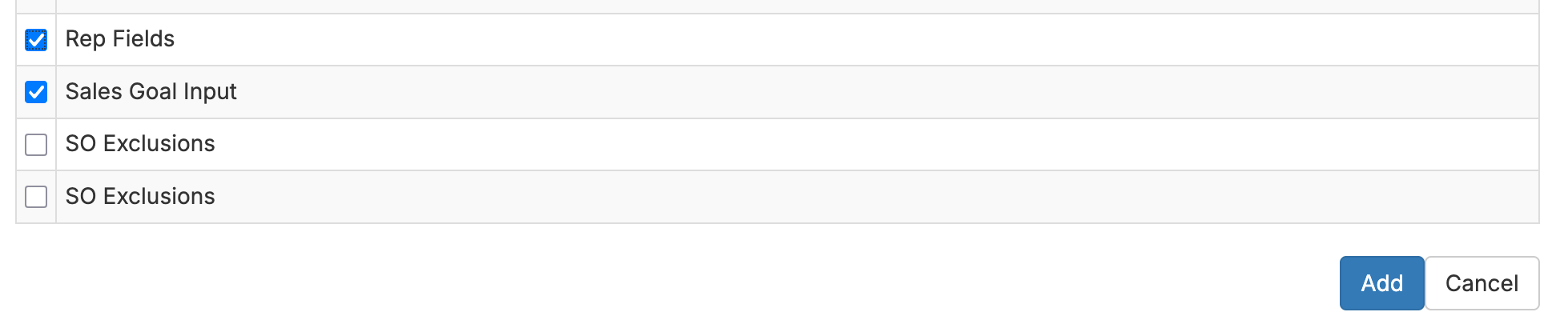
Click on Add Data Source, then check the checkbox next to the source you want to add. Make sure not to uncheck other sources that are already on the screen. Click Save:

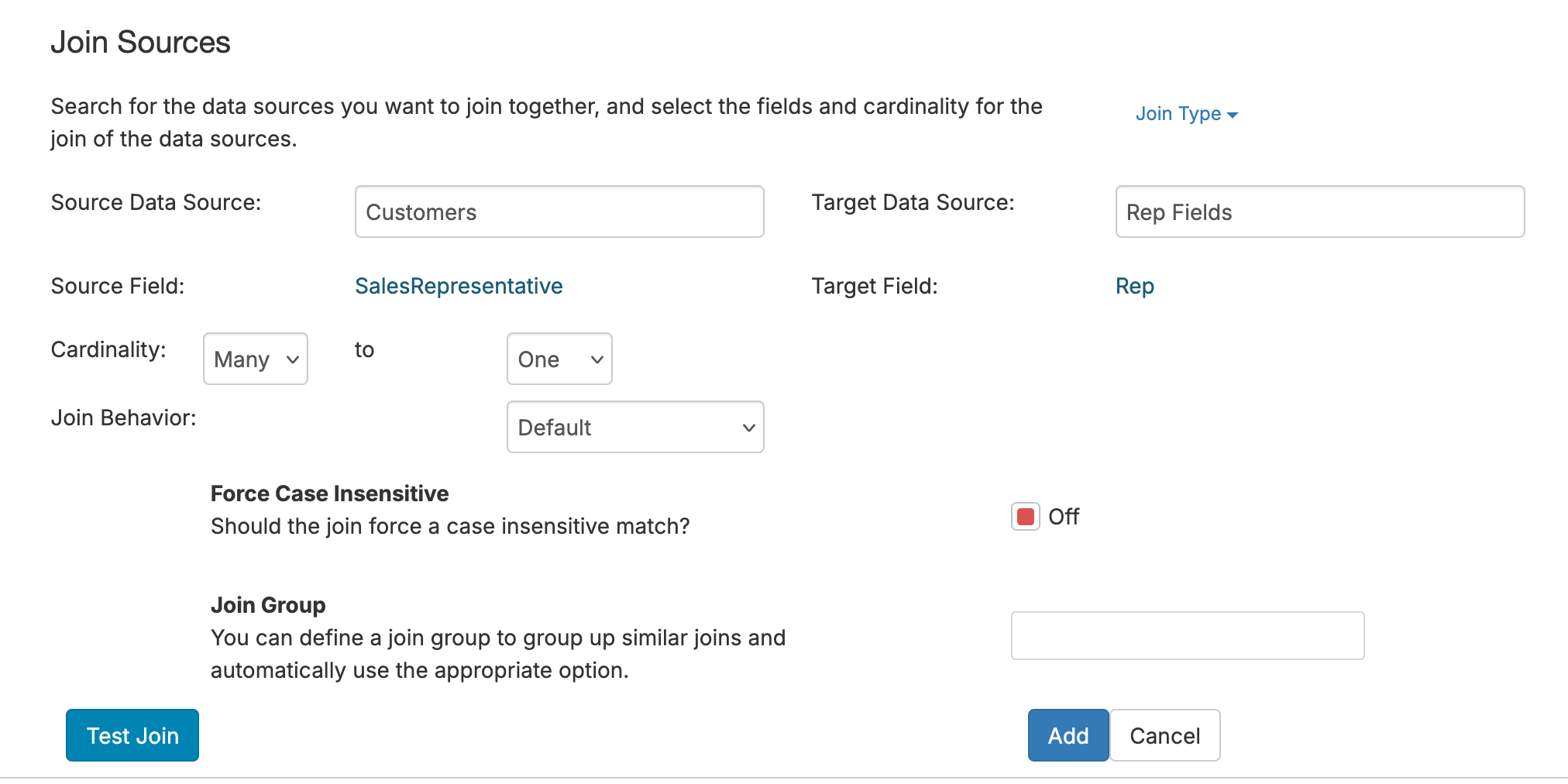
Next, you need to join this source to your data in some way. In this case, we have a rep field in the spreadsheet we're adding, so we'll scroll down, click on Add Join, and set up a join field from Customer Rep to the Rep field in our spreadsheet source. For more information on joins, see Joining Data Sources.

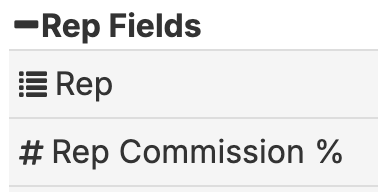
Once you've saved the source and the join to the source, you can use fields from the source in your reports like any other fields:

Combined Sources

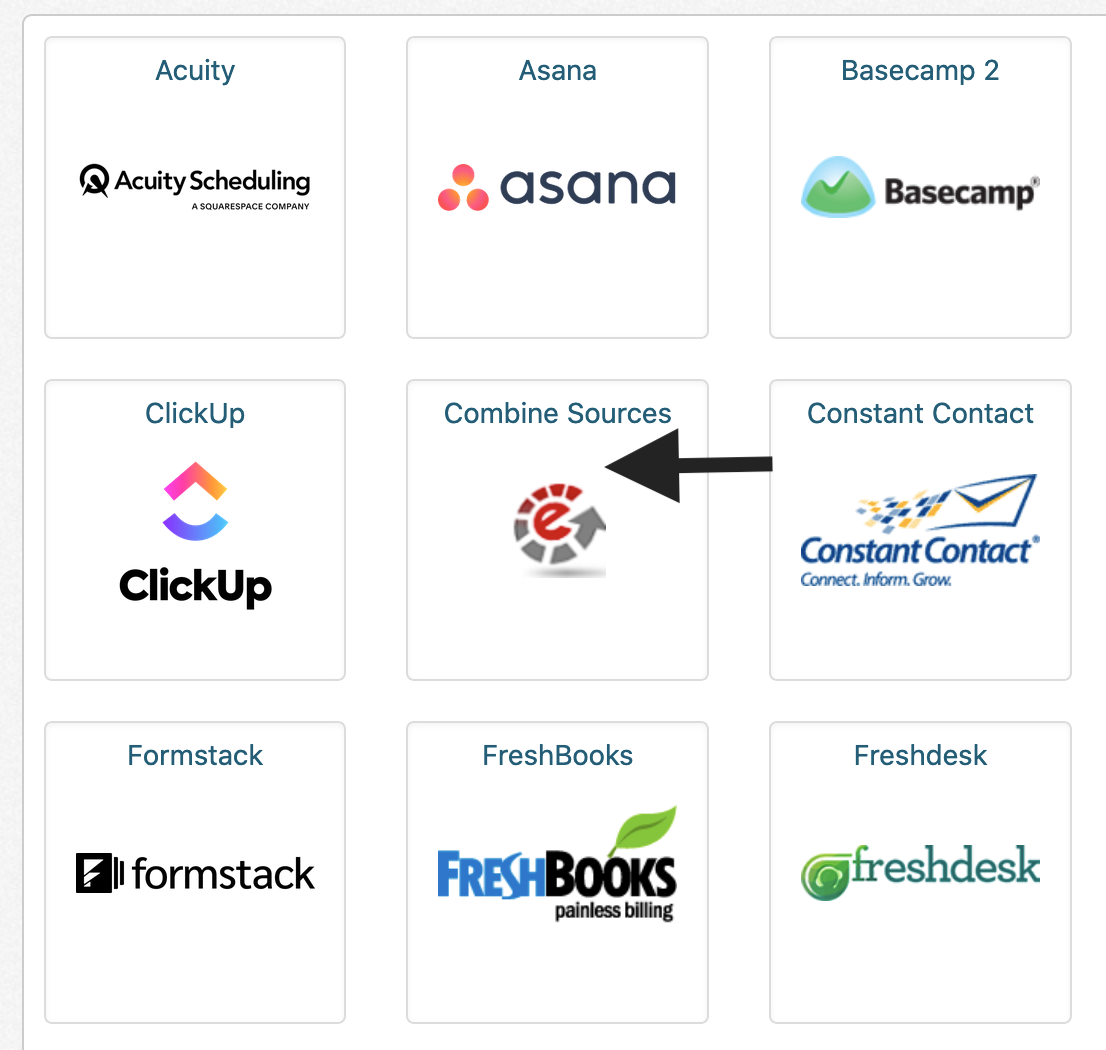
To create a combined data source, go to the Connections page and click on the 'Combine Sources' connection:

Custom Field Start

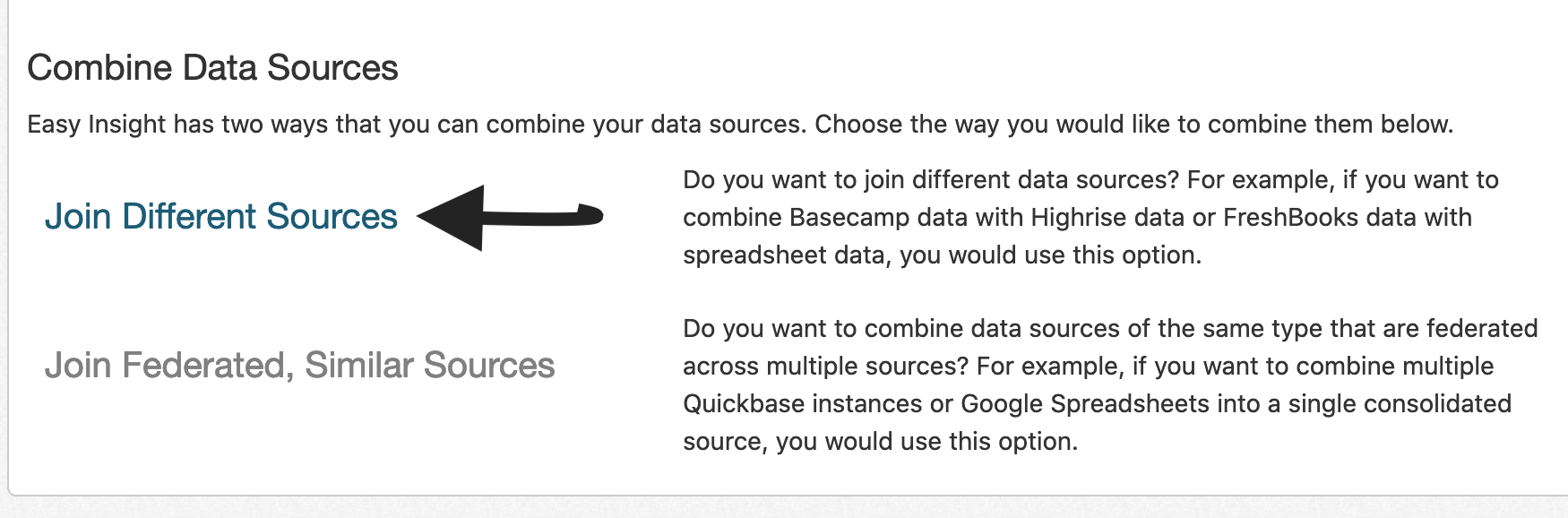
From here, you'll be prompted to either Join Different Sources or Federate Similar Sources. Choose Join Different Sources to create a new combined data source:

Custom Field Start

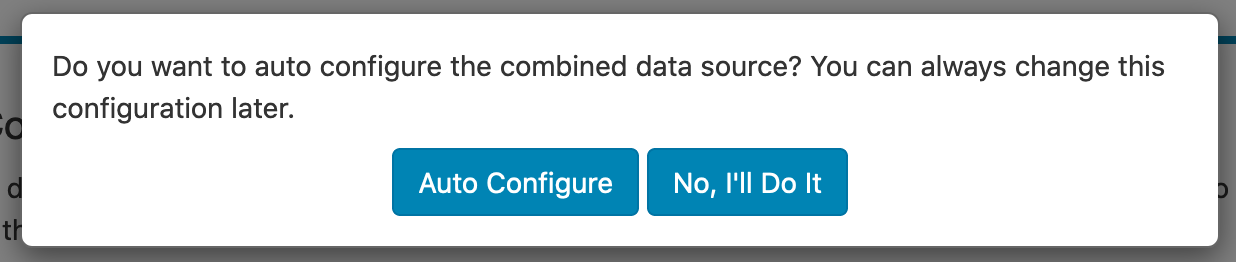
You have the option to automatically set up a combined source. If you click on 'Auto Configure', it'll attempt populate the data sources and joins for you. Otherwise, you can click on 'No, I'll Do It' to manually perform all configuration.

Custom Field Start

The combined data source contains the various individual data sources and the joins between those data sources. Joins define how the different data sources connect together. For example, if there's a common Project field between your data sources or a common Company field between your data sources, that may serve as a join for connecting data. For more information on joins, see Joining Data Sources.

Once your source is set up, you can click on the Save button. You'll be prompted to name the new combined data source.

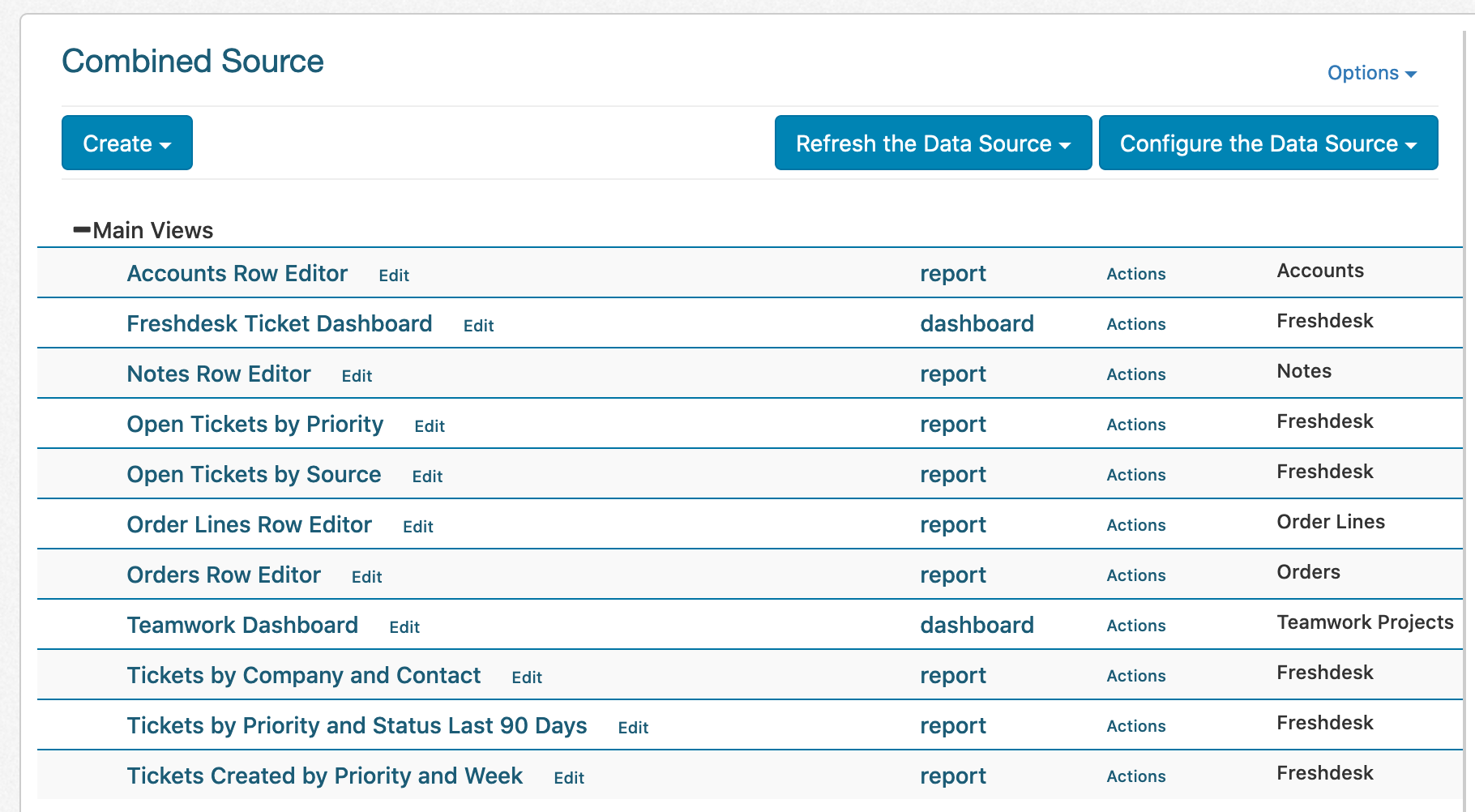
With your combined source created, all reports and dashboards will appear in your new combined source, as shown below. If you want to include the name of the data source to help identify what's what, you can click on Options -> Origin Data Source to include the individual data source name next to each report and dashboard.

Custom Field Start

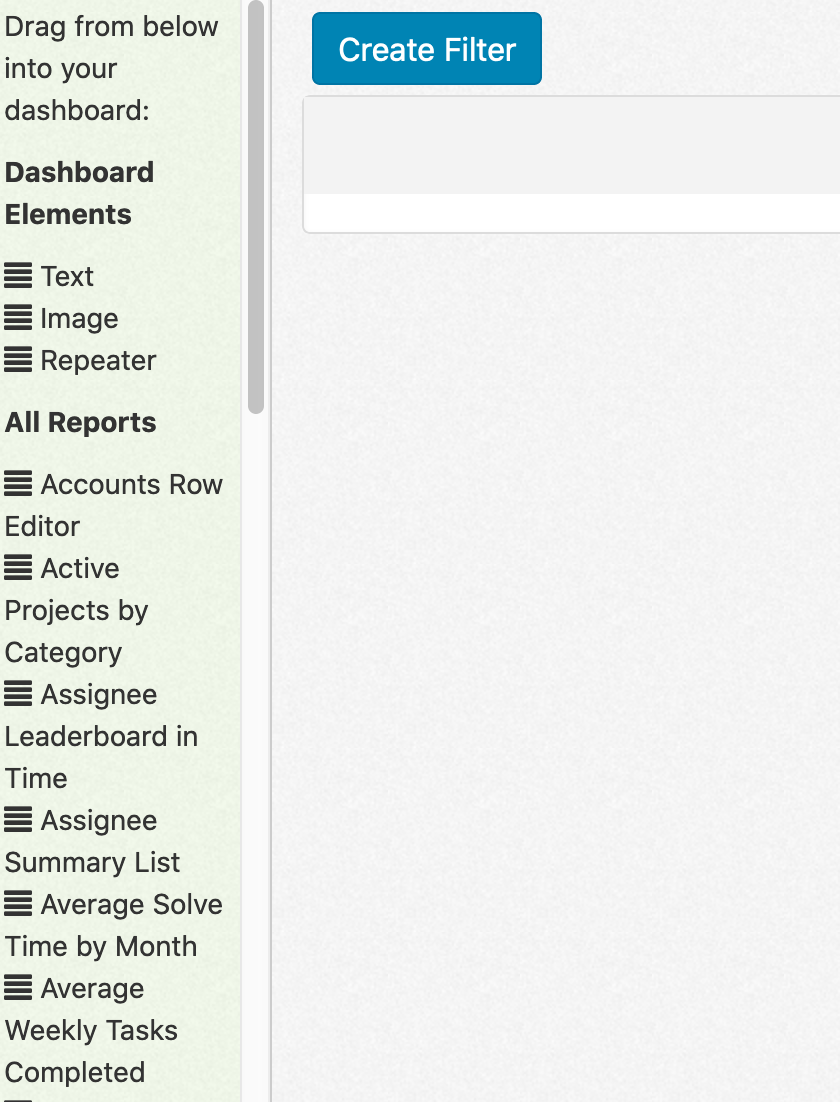
When you create a dashboard on the new combined data source, the various reports across all individual data sources are available to drag into the dashboard:

Custom Field Start

If you create a dashboard or page level filter, you'll need to have joins set up for the filter to properly apply across reports in the dashboard.

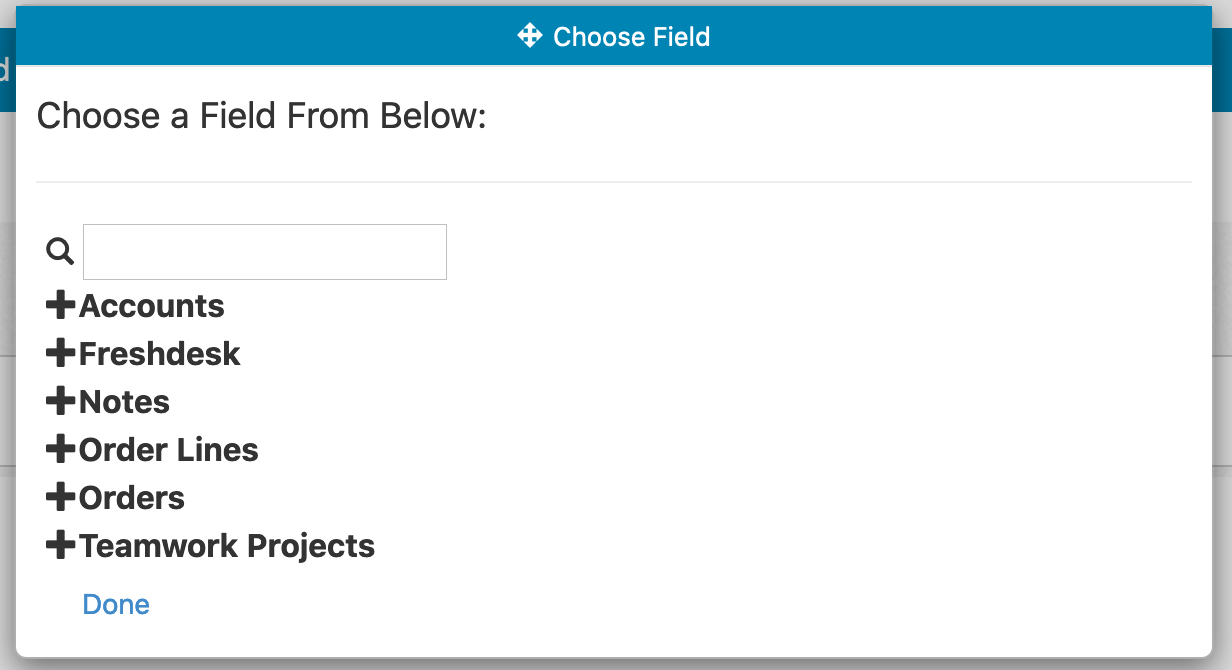
When you create a new report, you'll see fields available from the different individual sources:

Custom Field Start

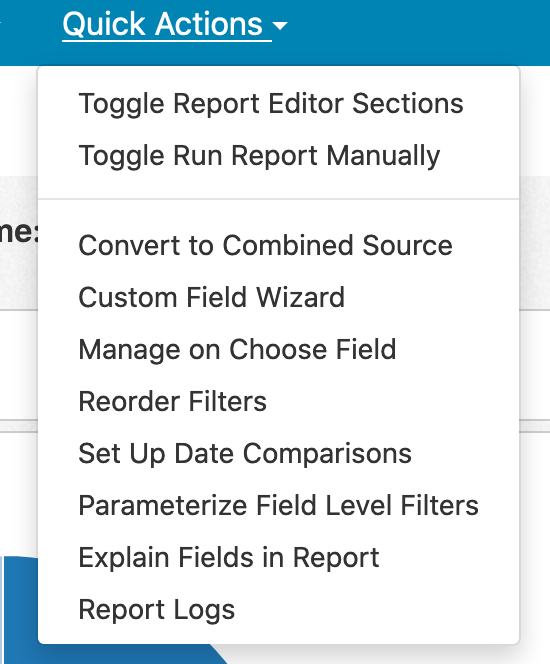
You can also take your existing reports and dashboards and move them to the combined source level. From the editor, click on Quick Actions -> Convert to Combined Source. You can test the migration and make sure it works before saving. You can also save the migration to the combined source as a copy to avoid breaking anything you have built already.

Custom Field Start

To add or remove sources or change joins between sources, you can click on Configure the Data Source -> All Configuration Options -> Manage Combined Source to make these changes.

Twitter Logo